Composer
The composer opens as a full-screen overlay inside the TUI or as a standalone window when launched from the command line.
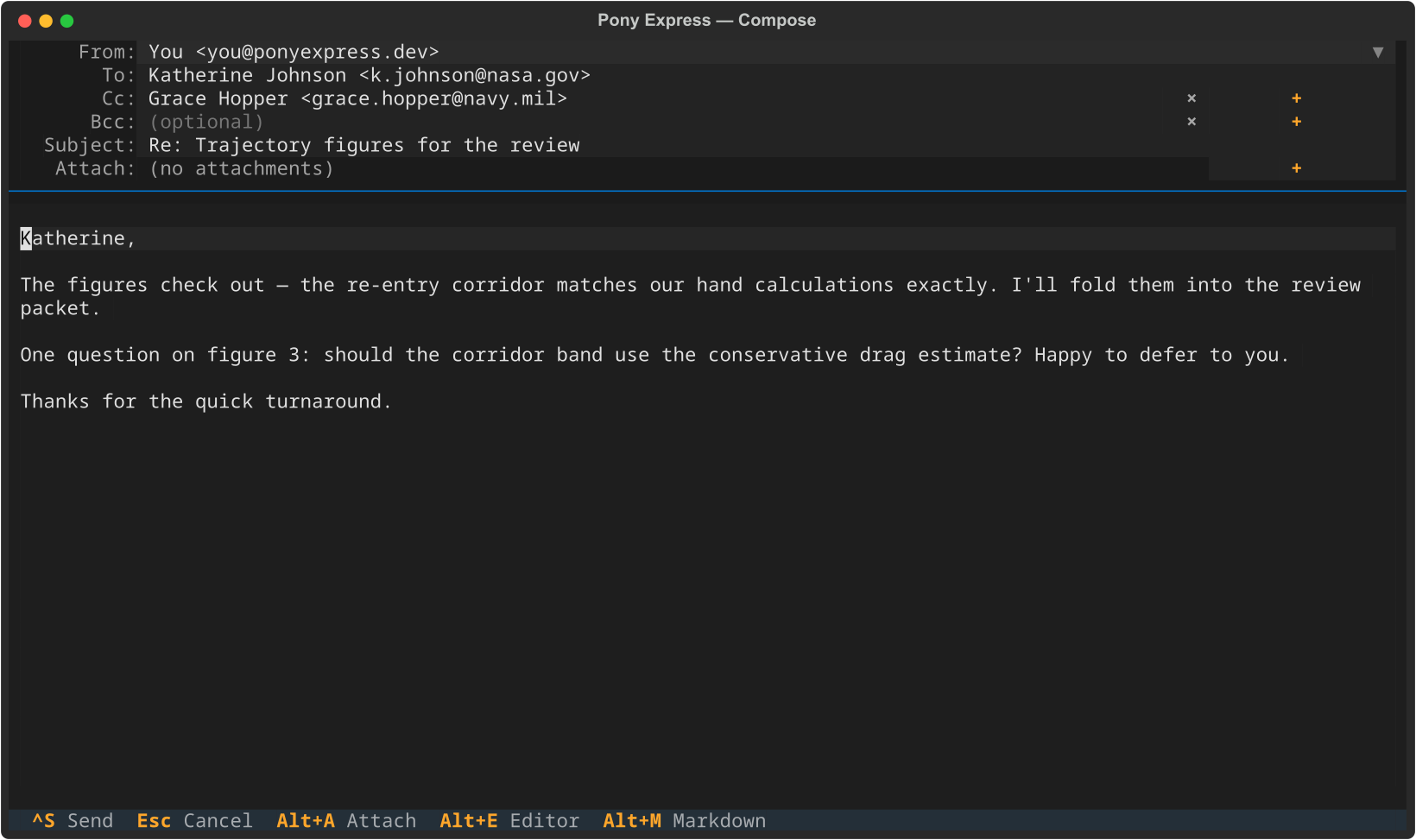
Opening the composer
| Method | How |
|---|---|
| New message | Press C in the TUI |
| Reply | Press R on a message in the TUI |
| Forward | Press F on a message in the TUI |
| CLI | pony compose [--to ...] [--subject ...] ... |
Layout
 Pony Express -- Compose
+----------------------------------------------------------------------------+
| From:    [ Personal <jane@example.com>                                v ]  |
| To:      alice@example.com                                                 |
| Cc:                                                                        |
| Bcc:                                                                       |
| Subject: Re: Project update                                                |
+--------------------------- Body -- Markdown OFF ---------------------------+
| Hi Alice,                                                                  |
|                                                                            |
| Thanks for the heads-up. I'll get the room booked for Tuesday.             |
|                                                                            |
| Best,                                                                      |
| Jane                                                                       |
|                                                                            |
| ------------------- Original message --------------------                  |
| > Hi Jane,                                                                 |
| >                                                                          |
| > Thanks for the update! The timeline looks good.                          |
| > I'll book the conference room for Tuesday.                               |
|                                                                            |
+----------------------------------------------------------------------------+
| Attachments: (none)                                                        |
+----------------------------------------------------------------------------+
 ctrl+s Send  Esc Cancel  ctrl+x... (s=send  a=attach  e=editor  m=markdown)
Fields
| Field | Description |
|---|---|
| From | Dropdown showing all configured accounts. Defaults to the account whose folder was selected, or the first account. |
| To / Cc / Bcc | Address fields. Multiple addresses are separated by commas. Supports tab-completion from the contacts store (see Contacts). |
| Subject | Subject line. Prefilled with Re: or Fwd: when replying or forwarding. |
| Body | Multi-line text editor. Quoted content is included at the bottom when replying or forwarding. |
| Attachments | Listed at the bottom; managed with Ctrl+X then A. |
Screen-specific bindings
The compose screen footer shows only compose-relevant bindings. Mail-reader
keys like g (sync) or d (trash) do not fire from the composer.
Keyboard shortcuts
Direct shortcuts
| Key | Action |
|---|---|
| Ctrl+S | Send the message immediately |
| Esc | Cancel (prompts to save as draft if body is non-empty) |
ctrl+x prefix chord
Press Ctrl+X to enter prefix mode. A brief notification appears:
Then press the second key:
| Second key | Action |
|---|---|
| S | Send |
| A | Add attachment |
| E | Open body in external editor |
| M | Toggle Markdown mode |
| C | Cancel |
Reply quoting
Pony uses top-posting: the cursor is placed above the quoted original. All existing quote levels are preserved on reply-to-reply, so a thread stays readable without manual cleanup.
Hi Alice,

I'll book the room for Tuesday.

------------- Original message -------------
> Hi Jane,
>
> Thanks for the update! The timeline looks good.
>
> ------------- Original message -------------
> > Could you review the Q1 plan?
Threading
Replies and reply-alls carry In-Reply-To and References, so the message
lands inside the original conversation in the recipient's mail client rather
than starting a new one. The chain the original carried is extended, not
replaced; when it grows long enough to risk overflowing the header, the
thread root is kept along with the most recent entries.
Saving a reply as a draft and finishing it later keeps the threading, so a half-written reply is not silently demoted to a new conversation. Forwards deliberately start their own thread.
Markdown mode
When Markdown mode is enabled, the body is treated as CommonMark source. The
sent message becomes multipart/alternative:
text/plainpart -- the raw Markdown source as typed (fully readable in plain-text clients)text/htmlpart -- the rendered HTML (shown by clients that support it)
The border title of the body area reflects the current state:
Enabling Markdown mode
| Method | How |
|---|---|
| Per-message toggle | Ctrl+X then M inside the composer |
| Account default | markdown_compose = true in the account config |
| Global default | markdown_compose = true in the top-level config |
| CLI flag | pony compose --markdown / pony compose --no-markdown |
Example: Markdown message
With Markdown ON, you can write:
Hi Alice,

Here is the **updated timeline**:

| Milestone | Date |
|---|---|
| Design review | Apr 14 |
| Implementation | Apr 21 |
| QA sign-off | Apr 28 |

Let me know if anything looks off.
Recipients using a mail client that renders HTML will see a formatted table. Recipients in a plain-text client see the raw Markdown, which is legible as-is.
External editor
If editor is set in the config, press Ctrl+X then E to open the
message body in that editor. Pony suspends the TUI, waits for the editor to
exit, then resumes with the updated content.
If editor is not set or the executable is not found on PATH, the shortcut
does nothing and a notification is shown.
Attachments
Press Ctrl+X then A to open the attachment picker:
+----------------- Add attachment -------------------+
| Filter: report                                     |
+----------------------------------------------------+
| > ~/Documents/                                     |
|    q1-report.pdf                                   |
|    q1-report-draft.pdf                             |
| > ~/Downloads/                                     |
|    quarterly-report-final.pdf                      |
+----------------------------------------------------+
The picker is a DirectoryTree with a typeahead filter (0.8 s debounce).
Navigate to a file and press Enter to attach it. Repeat Ctrl+X then
A to add more files.
Attached files are shown at the bottom of the composer:
Sending
Pony sends immediately over SMTP when you press Ctrl+S (or Ctrl+X
then S). The account's [accounts.<name>.smtp] subtable (host,
port, ssl) controls the transport. After a successful send, the message
is saved to the sent folder (auto-discovered by fuzzy name match, or the
explicit sent_folder config value).
Local accounts can also send when they carry their own [accounts.smtp]
subtable plus username / credentials_source — they show up in the
From: dropdown alongside IMAP accounts.
The password is resolved through the same credential backend as syncing, so
every credentials_source works here: plaintext, env, command and
encrypted. If the backend cannot produce a password — a locked keyring, an
unset variable, a failing command — the composer says so and keeps the
message rather than discarding it.
If sending fails, a notification appears with the error. You can then choose to save the message as a draft.
Drafts
There is no autosave. If you press Esc (or Ctrl+X then C) with a non-empty body, Pony asks whether to save a draft:
+-----------------------------+
| Save as draft?              |
|                             |
|   [Save]      [Discard]    |
+-----------------------------+
Drafts are saved to the drafts folder (auto-discovered by fuzzy name match, or
the explicit drafts_folder config value) and appear in the message list like
any other message.