Terminal UI
Launch the TUI with pony tui. Press Q to quit at any time.
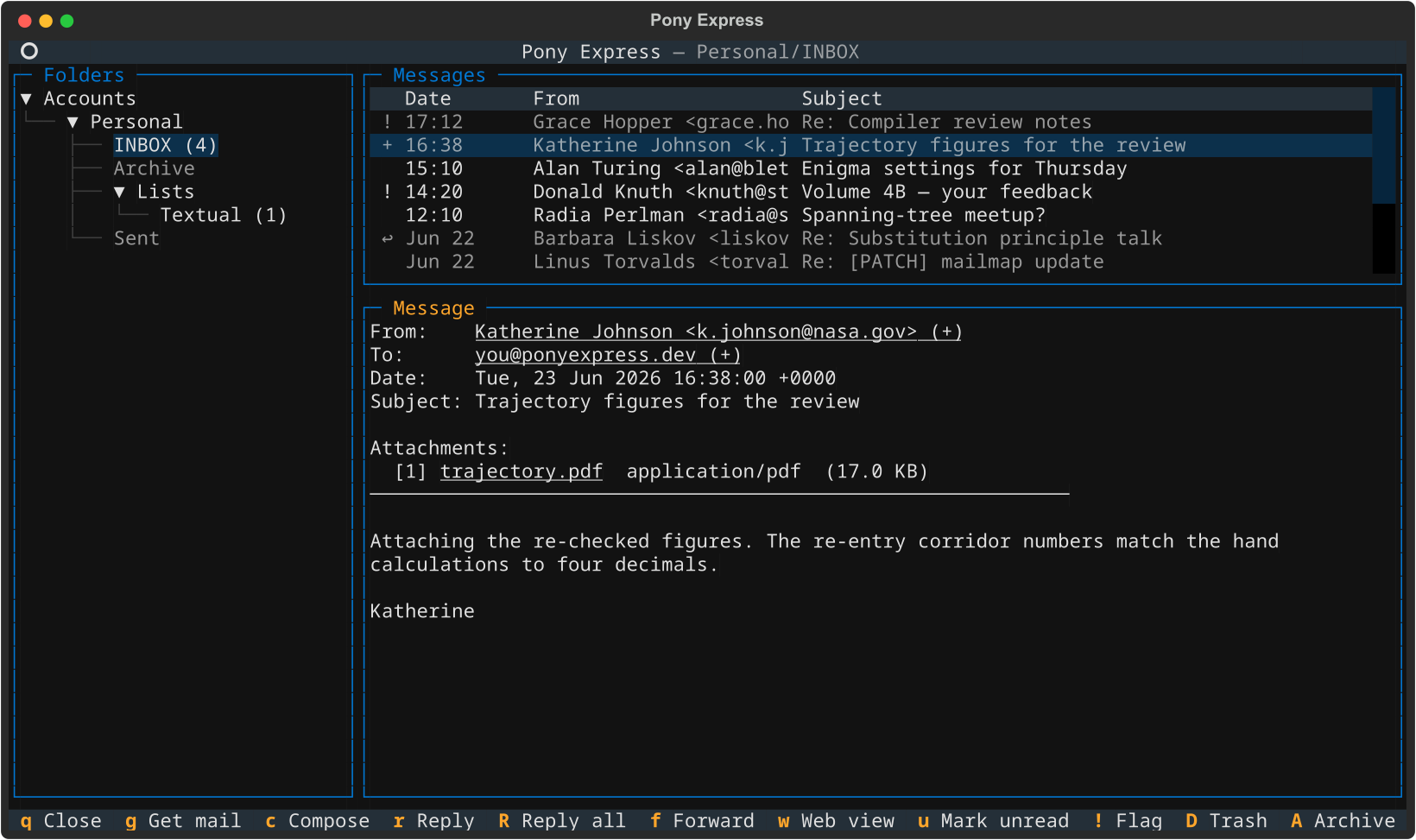
Layout
The TUI is a three-pane layout. All accounts are visible simultaneously; the folder list on the left is collapsible per account.
 Pony Express                                                           Mail
+------------------------+-----------------------------------------------------+
| > Personal             |  From              Subject               Date    Sz  |
|   > INBOX  (3 unread)  | --------------------------------------------------- |
|     Sent Mail          | * Alice Smith      Re: Project update    Apr 11   4K |
|     Drafts             |   Bob Jones        Meeting tomorrow      Apr 10   2K |
|     Archive            |   no-reply@ex.com  Your order shipped    Apr 09   8K |
|                        |                                                      |
| > Work                 | --------------------------------------------------- |
|   > INBOX (12 unread)  |  From:    Alice Smith <alice@example.com>            |
|     Sent Items         |  To:      jane@example.com                           |
|     Projects           |  Date:    Sat, 11 Apr 2026 14:32 +0200              |
|     Projects/Alpha     |  Subject: Re: Project update                         |
|     Archive            |                                                      |
|                        |  Hi Jane,                                            |
| > Archive              |                                                      |
|   > INBOX  (0 unread)  |  Thanks for the update! The timeline looks good.     |
|     2024               |  I'll book the conference room for Tuesday.          |
|     2025               |                                                      |
|                        |  Best,                                               |
|                        |  Alice                                               |
+------------------------+-----------------------------------------------------+
 Q Quit  g Get mail  c Compose  r Reply  f Forward  D Trash  B Contacts
| Pane | Description |
|---|---|
| Left | Folder list grouped by account, with unread counts. Selecting a folder loads its messages in the top-right pane. |
| Top-right | Message list for the selected folder, sorted newest-first. An unread indicator appears in the icon column. |
| Bottom-right | Message preview. Renders text/plain; HTML-only messages have <style>, <script>, and tags stripped for a clean reading experience. |
Screen-specific keybindings
Each screen in the TUI shows only its own relevant keybindings in the footer
bar. Mail-reader bindings (sync, compose, flags) appear only in the main
reader. The contacts browser and compose screens show only their own
keybindings, so pressing mail keys like g or D inside the contacts browser
does nothing.
Navigation
Folder pane
| Key | Action |
|---|---|
| N | Move to next folder |
| P | Move to previous folder |
| Shift+N | Jump to next account's INBOX |
| Shift+P | Jump to previous account's INBOX |
| Shift+G | Goto-folder dialog: fuzzy-search every account/folder pair |
| F1 | Show the keybinding cheatsheet (centered modal) |
Message list
| Key | Action |
|---|---|
| N | Move to next message |
| P | Move to previous message |
| < | Jump to first message |
| > | Jump to last message |
| M | Mark the current row and move down (marked rows become the target of flag, move and copy actions) |
| Shift+Down / Shift+Up | Mark and move without leaving the keyboard home row |
| Enter | Open message in the preview pane |
Message preview
When the message view is focused (after opening a message):
| Key | Action |
|---|---|
| Q / Esc | Close preview, return focus to message list |
| N | Load next message |
| P | Load previous message |
| Space / Page Down | Scroll down one page (or advance to next unread at bottom) |
| < | Scroll to top |
| > | Scroll to bottom |
Flag operations
Flag changes are applied immediately to the local index and pushed to the
server on the next sync. They are also written onto the message in the local
mirror — as the filename suffix for Maildir, as the Status / X-Status
headers for mbox — so another mail client reading the same tree sees the same
read, flagged and answered state.
| Key | Action |
|---|---|
| U | Mark current message as unread |
| Shift+C | Mark every message in the current folder as read |
| ! | Toggle the starred/flagged flag |
| Shift+D | Move to trash (sets local_status = trashed; pushed to server on next sync) |
| Shift+A | Archive to the account's archive_folder (local move; pushed to server on next sync) |
| Shift+Y | Copy the current message to another folder |
| Shift+M | Move the current message to another folder |
| Shift+N | Create a new folder in the current account's local mirror (server-side CREATE issued on next sync) |
Opening a message marks it read; there is no separate key for that.
Trash vs. delete
D marks the message for deletion locally. It stays in the local mirror
until the next sync, when Pony sends an EXPUNGE to the server and purges
the local copy. In a read-only folder, D is a no-op that self-corrects
on the next sync.
Archive
A requires archive_folder = "..." on the account. The selected message
moves into that folder immediately in the mirror and the index; the next
sync executes UID MOVE on the server (or COPY + EXPUNGE on servers
that don't support RFC 6851). Archiving is refused when the source or
target folder is read-only or excluded from sync.
New folder
N opens a one-line input for a folder name. The folder is created
immediately in the account's local mirror (Maildir directory or mbox
file). For IMAP accounts the next sync compares local mirror folders
against server folders and issues IMAP CREATE for any folder that
exists only locally, so the freshly-created folder appears on the
server too. For local accounts the folder is created locally only —
there is nothing to push.
Sync from the TUI
Press G to start a sync without leaving the TUI.
-
Pony computes the sync plan, showing a progress bar during the planning phase as it scans each folder:
-
Once planning completes, a confirmation screen shows the plan:
-
Choose Proceed to apply the plan. A progress bar tracks execution. After the sync completes, the folder list and message list refresh automatically.
Press Ctrl+G to start a background sync immediately. This path shows no
confirmation screen, auto-confirms every folder, and shows a spinner on the
Folders panel title while it runs. It also arms or restarts the periodic
background-sync timer, so the next background run happens after
background_sync_interval_seconds.
Set background_sync_enabled = true to arm that periodic timer as soon as the
TUI starts, without waiting for the first Ctrl+G.
Search
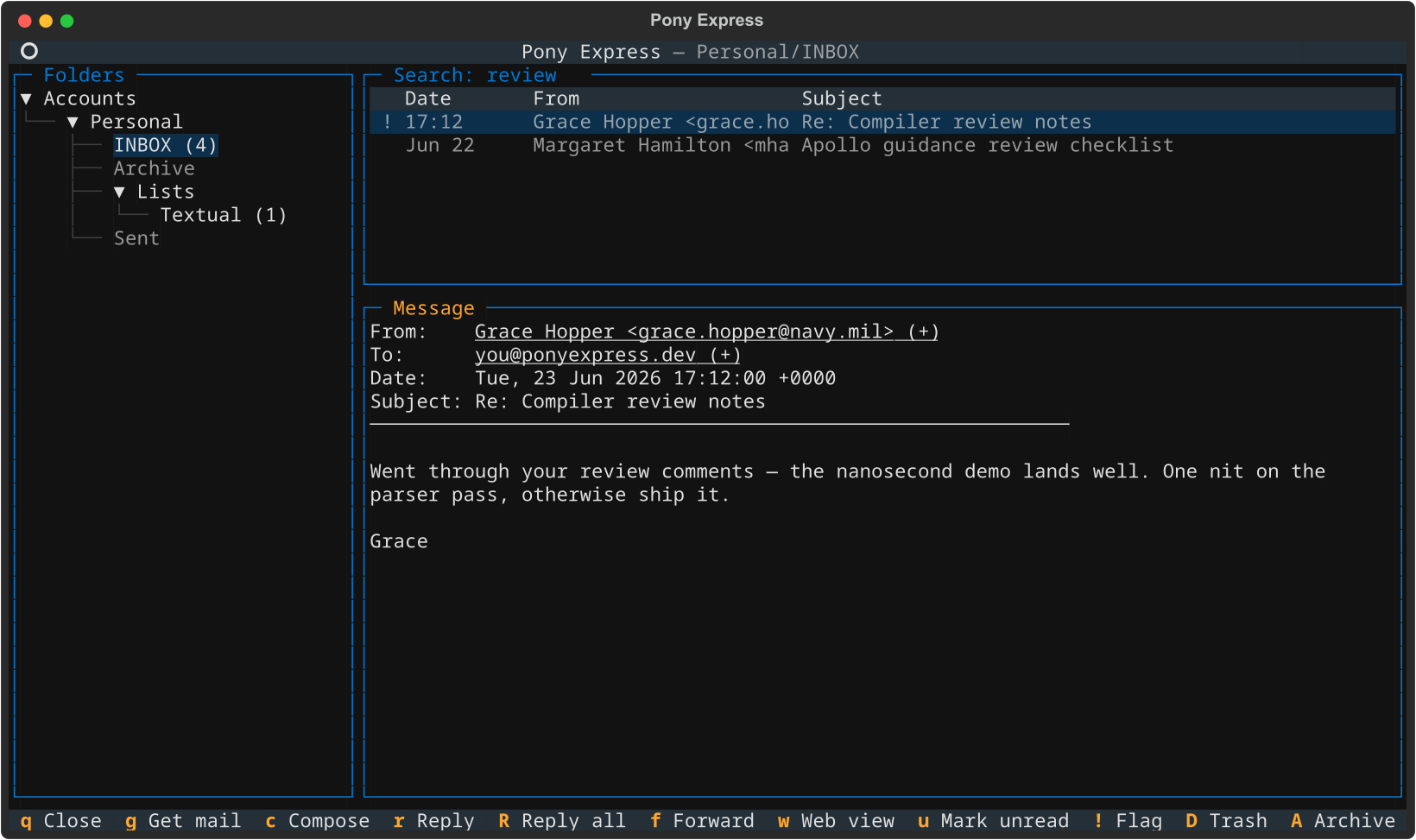
Press / from anywhere in the main reader to open the search dialog. Results replace the message list, with the active query shown in the panel title:
+----------------------------------------------------------------------+
|  Search: from:alice subject:project                                  |
|                                             [Search]   [Cancel]      |
+----------------------------------------------------------------------+
Results replace the current message list. The search is scoped to the selected folder if a folder is highlighted, or account-wide if an account node is selected.
Press Q in the message list to exit search and reload the original folder.
Query syntax
| Token | Matches |
|---|---|
word |
Body containing word (case-insensitive by default) |
from:alice |
From address |
to:bob |
To address |
cc:carol |
Cc address |
subject:hello |
Subject |
body:text |
Body (explicit prefix) |
"quoted phrase" |
Exact phrase |
Compose, reply, and forward
| Key | Action |
|---|---|
| C | Open the composer for a new message |
| R | Reply to the current message (top-post, quotes original, threaded) |
| Shift+R | Reply to everyone the message reached, minus your own address |
| F | Forward the current message (attached as a .eml named after its subject) |
| E | Reopen the current message as a draft for editing |
| Shift+B | Open the contacts browser |
See the Composer page for the full composer reference and the Contacts page for the browser and editor reference.
Reading attachments
Attachments are listed between the header block and the message body:
  From:    bob@example.com
  Subject: Q1 Report

  Attachments:
     [1] q1-report.pdf          (342 KB)
     [2] supporting-data.xlsx   ( 89 KB)

  Hi Jane, please find the Q1 report attached...
| Key | Action |
|---|---|
| 1 / 2 / 3 | Open attachment 1, 2, or 3 in the default application |
| 0 | Open all attachments |
| Ctrl+1 / Ctrl+2 / Ctrl+3 | Save attachment 1, 2, or 3 to ~/Downloads |
| Ctrl+0 | Save all attachments |
| W | Open the full raw message as HTML in the default browser |
Tip
The W (web view) key writes a temporary HTML file and opens it in your default browser. Useful for HTML-heavy newsletters that the plain-text renderer does not do justice.
Contacts harvest
Press Shift+H to harvest contact addresses from all messages currently loaded in the message list into the contacts store. This is a one-time backfill; new messages are harvested automatically as they are indexed during sync.
See the Contacts page for details.
Log file
The TUI redirects all log output to <state_dir>/logs/pony-tui.log using a
rotating file handler. No log messages appear in the terminal while the TUI is
running. Run pony tui --debug (via pony --debug tui) to include DEBUG-level
entries in the log.