Contacts
Pony Express maintains a person-centric address book that groups multiple email addresses, aliases, and metadata under a single contact record. The store is built automatically from mail headers and can be browsed, searched, edited, merged, and synchronised with Emacs BBDB format.
Contact records
Each contact represents one person.
| Field | Description |
|---|---|
| First name | Given name |
| Last name | Family name |
| Email addresses | One or more addresses (the primary address is listed first) |
| Aliases | Alternate names or nicknames (e.g. "Bob" for "Robert") |
| Affix | Titles or suffixes: "Dr.", "Jr.", "PhD" |
| Organization | Employer or affiliation |
| Notes | Free-form text |
| Message count | How many indexed messages reference this person |
| Last seen | Date of the most recent message involving this person |
A contact can hold any number of email addresses. Autocomplete in the composer matches against all of them, as well as the name and aliases.
How contacts are harvested
Every time a message is indexed -- during a sync or when you send a message --
Pony extracts all addresses from the To and Cc headers. For each address:
- If the email is already known, the contact's message count and last-seen date are updated. If the contact had no name and the header now provides one, the name is filled in.
- If the email is new, a new contact record is created. The display name from the header is split into first and last name (the last whitespace-delimited token becomes the last name).
Sender addresses (From) are intentionally excluded from harvesting to keep
the store focused on people you write to.
Manual backfill
If you have an existing mail archive, press Shift+H in the TUI to harvest contacts from all messages currently visible in the message list. For a full backfill, open each folder and press Shift+H, or run a sync and let the indexing pipeline harvest automatically.
Contacts browser
Open the contacts browser with Shift+B in the TUI, or from the command line:
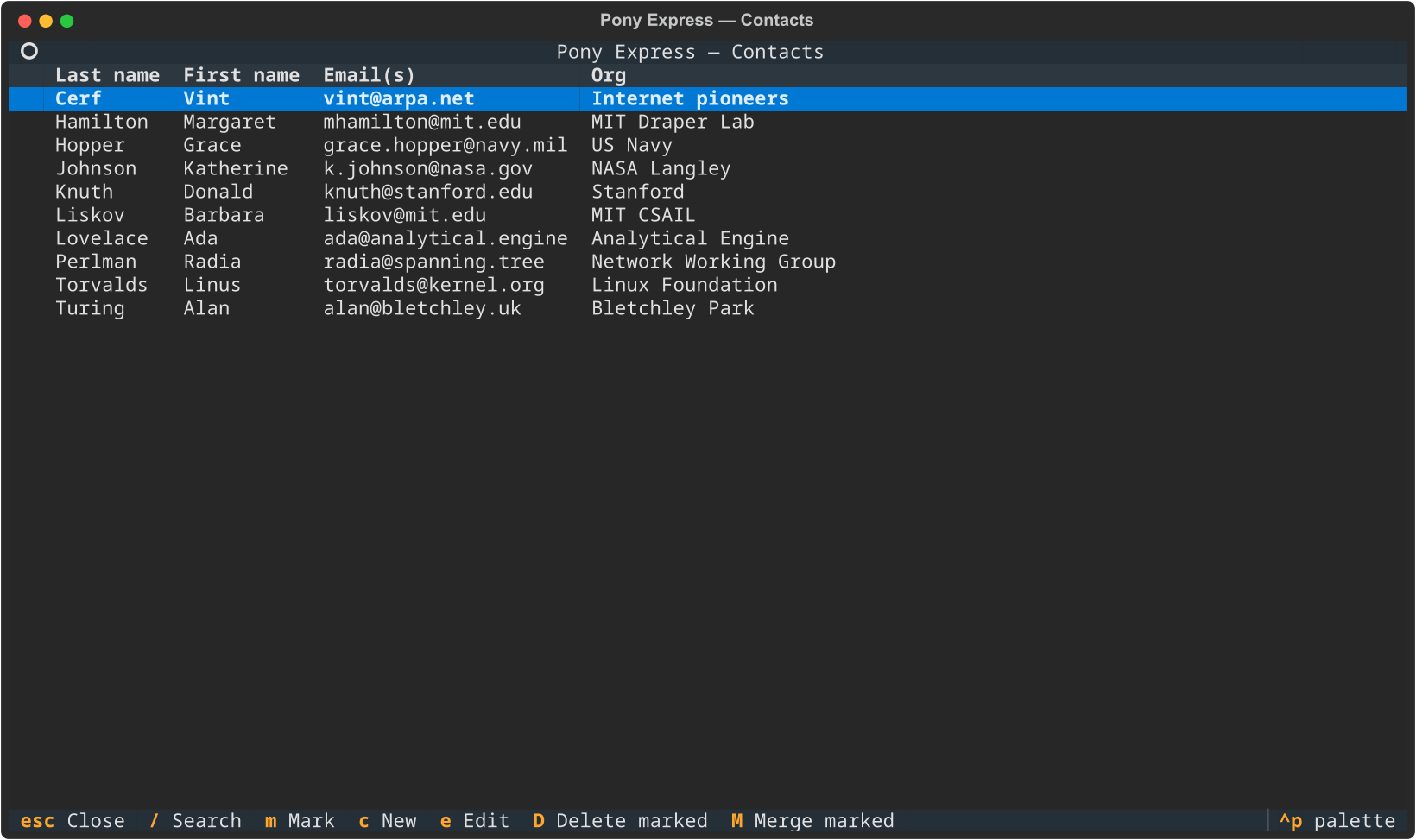
The browser shows a searchable, scrollable list of all contacts sorted by last name. Columns show: mark indicator, last name, first name, email addresses, and organization.
Keybindings
| Key | Action |
|---|---|
| / or S | Open the search/filter bar |
| Enter | Show the read-only detail view for the selected contact |
| E | Open the contact editor directly |
| M | Mark or unmark the selected contact (Shift+Down / Shift+Up also work) |
| Shift+D | Delete all marked contacts (with confirmation dialog) |
| Shift+M | Merge all marked contacts into one |
| Esc or Q | Close the browser |
Screen-specific bindings
The contacts browser footer shows only contacts-relevant bindings.
Mail-reader keys like g (sync) or d (trash) do not fire from the
contacts browser.
Searching
Press / or S to open the filter bar. Type a name, email, or alias fragment. The list updates to show only matching contacts. Press Enter to apply the filter and return focus to the list. Clear the filter to show all contacts again.
Detail view
Press Enter on a contact to open a read-only detail screen showing all fields: name, affix, aliases, organization, all email addresses, message count, last seen date, notes, and timestamps. From the detail view:
| Key | Action |
|---|---|
| E | Open the editor for this contact |
| Esc or Q | Return to the browser |
Merging contacts
When two contacts turn out to be the same person (e.g. a work email and a personal email), you can merge them:
- Navigate to the first contact and press M to mark it.
- Navigate to the second contact and press M to mark it.
- Press Shift+M to merge. All email addresses and aliases from the marked contacts are combined into the first one. Message counts are summed. The other records are deleted.
You can mark and merge more than two contacts at once.
Deleting contacts
Mark one or more contacts with M, then press Shift+D to delete them all. A confirmation dialog shows the names that will be deleted. If no contacts are marked, pressing Shift+D deletes the currently selected contact (also with confirmation).
Contact editor
Press E on a contact in the browser (or from the detail view) to open the editor. All fields are editable:
- First name and Last name: free text.
- Affix: comma-separated titles or suffixes (e.g.
Dr., PhD). - Organization: employer or affiliation.
- Email addresses: comma-separated. Removing an email here detaches it from this contact.
- Aliases: comma-separated nicknames. These are searchable in autocomplete.
- Notes: free-form multi-line text.
| Key | Action |
|---|---|
| Ctrl+S | Save changes and return to the browser |
| Esc | Discard changes and return to the browser |
Autocomplete in the composer
The To, Cc, and Bcc fields in the composer support tab-completion.
Suggestions match against names, aliases, and all email addresses for each
contact. Results are ranked by message count (most-contacted first).
 To:  ali
       +------------------------------------------+
       | Alice Smith <alice@example.com>           |
       +------------------------------------------+
Multiple addresses: The fields support comma-separated values. Autocomplete activates on the address currently being typed and preserves addresses already entered.
BBDB import and export (Emacs interop)
Pony can read and write BBDB v3 files, so contacts can be moved between Pony and Emacs. The format is plain-text Lisp vector notation, UTF-8 encoded.
The contacts database is the single store. BBDB is a format you move data
through when you ask, not a second copy kept in step — nothing is imported or
exported unless you run the command. Earlier versions imported from bbdb_path
and rewrote an export on every launch and every sync, which meant contacts
appeared and files changed as a side effect of reading mail.
bbdb_path
bbdb_path names the file pony contacts import reads when you give it no
path:
It is only ever read. pony contacts export will not write to it even if you
give it no destination, because Pony's export cannot represent that file in
full — it carries no phone numbers, postal addresses, xfields beyond notes,
or stable record ids, so overwriting it would discard data Pony never had.
Manual import/export
# Import from a BBDB file into the contacts database
pony contacts import ~/.emacs.d/bbdb

# Export the contacts database to a BBDB file
pony contacts export ~/contacts.bbdb
BBDB field mapping
| Pony field | BBDB field |
|---|---|
| First name | firstname (field 0) |
| Last name | lastname (field 1) |
| Affix | affix (field 2) |
| Aliases | aka (field 3) |
| Organization | organization (field 4) |
| Email addresses | mail (field 7) |
| Notes | xfields / notes (field 8) |
Phone and address fields (BBDB fields 5-6) are preserved if present in an imported file, but Pony does not generate them.
CLI commands
pony contacts / pony contacts browse
Open the interactive contacts browser.
pony contacts search <prefix> [--limit N]
Search contacts from the command line. Matches names, aliases, and email addresses. Results are sorted by message count (most contacted first).
$ pony contacts search alice
  Alice Smith  <alice@example.com>  (seen 47x)
  Alice Jones  <alice.jones@corp.example.com, aj@home.net>  (seen 12x)
pony contacts show <email>
Display the full record for a contact identified by email address.
pony contacts export [path]
Write the contacts database to a BBDB v3 file. If path is omitted,
writes to <data_dir>/contacts.bbdb.
pony contacts import [path]
Read a BBDB v3 file into the contacts database with smart merge
(match by email, combine emails/aliases, prefer richer name/org/notes).
If path is omitted, reads from the bbdb_path config setting.